Herdr: The Terminal That Keeps an Eye on My AI Agents
 Andrey Kovtun at5 min read
I have been using drop-down terminals such as Tilda and Yakuake for years. Press Alt+F1, and the terminal appears over every other window. Press it again, and it disappears. No hunting for the right window or wandering across virtual desktops.
When AI agent harnesses pulled me [[22. Moving Back to the Terminal|back into the terminal]], I added another requirement. I needed to see what several agents were doing: which one was working, which one had finished, and which one had stopped to wait for my input. A regular terminal was no longer enough.
Kitty Came First
Kitty is still my favorite terminal. It is fast and lightweight, displays images, and splits its window into horizontal and vertical panes. A kitten can turn it into a drop-down terminal. Separately, Kitty can save window layouts and sessions.
I first tried to build the whole workspace directly in Kitty: panes for agents, separate tabs for projects, session restoration, and partial status indicators in tab titles. It mostly worked.
The scripts were sometimes unpredictable, session state did not always restore cleanly, and managing several agents remained a homemade layer on top of the terminal. I could use it, but I enjoyed it less and less.
Giving Herdr a Second Chance
Herdr had crossed my path before. I had even tried it, but quickly gave up because of its keyboard shortcuts.
That is exactly what I dislike about tmux and zellij: press a prefix, press another key, memorize a separate command system, and keep switching modes in your head. That workflow may suit other people. It does not suit me. After years in Kitty, muscle memory has already made the decision.
So I kept Kitty on the outside as the drop-down terminal and ran Herdr inside it. Then I asked an agent to rewrite Herdr's keybindings to match the Kitty layout I already knew.
Alt+V splits a pane vertically, while Alt+H splits it horizontally. Alt plus the arrow keys moves focus between panes, and Ctrl plus the arrow keys switches tabs. New tabs, closing panes, jumping to a tab by number — everything landed where my fingers expected it.
I gave Herdr a second chance. This time, everything clicked.
A Workspace for Agents
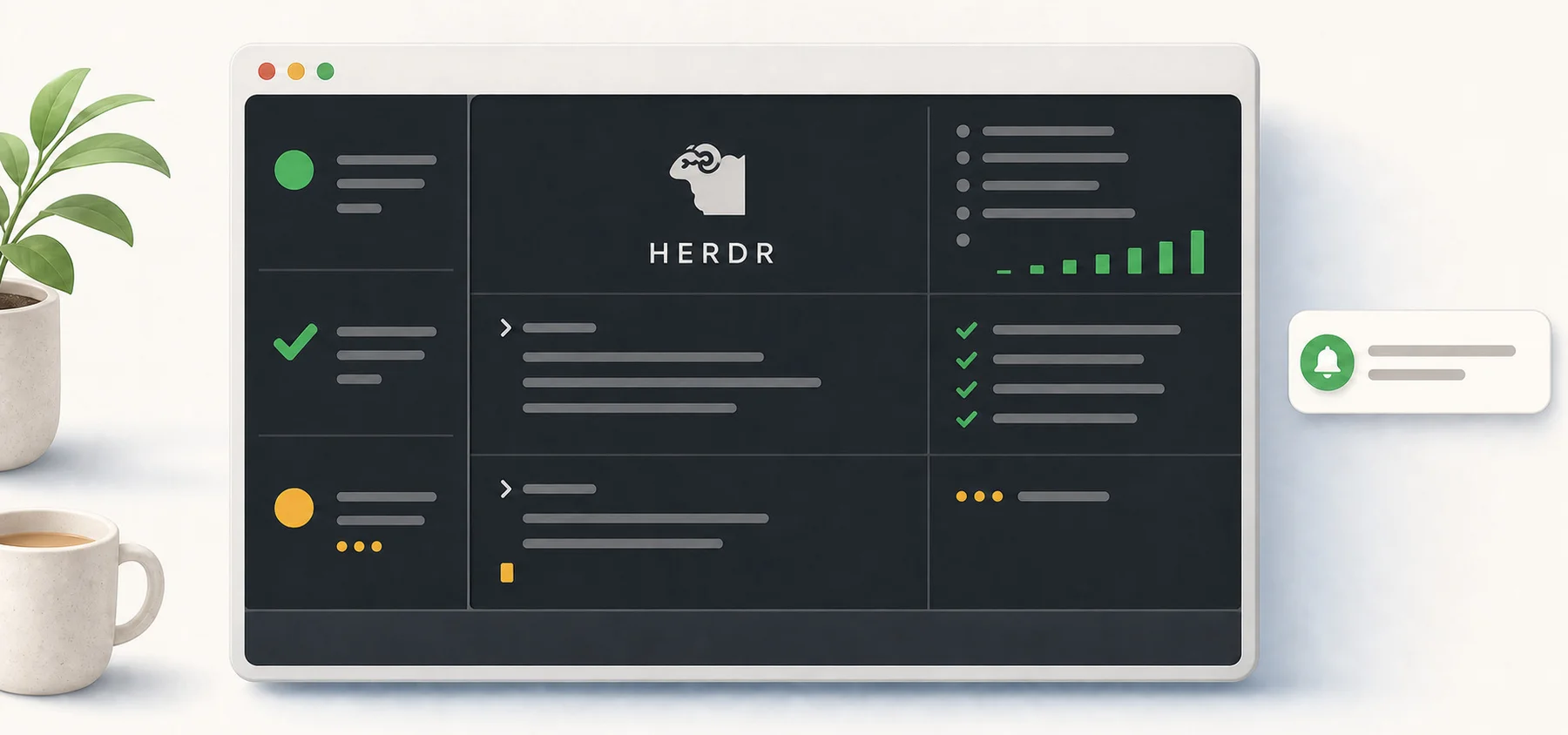
Herdr understands that agents are running inside the terminal. Its sidebar shows whether an agent is working, finished, idle, or waiting for my response. I no longer have to cycle through every tab to see where a result has appeared.
I use the same naming pattern for every new tab: the task number, when there is one, followed by a short description. If a task stalls and I return to it the next day, the tab name immediately reminds me what is happening inside.
Notifications arrive in two places. The sidebar icon shows the current status, and KDE sends a system notification when an agent finishes. With several tasks running at once, I only switch to a tab when an agent actually needs my attention.
I have run Pi in Herdr — my default harness with a custom set of tools — along with Codex, Hermes, and Cursor. All of them report their status correctly and send notifications.
It took me about ten minutes to write a small KDE system tray app. It connects to Herdr and displays the current status as a tray icon. Now I can see what the agents are doing even when the drop-down terminal is hidden.
Sessions, Plugins, and Remote Work
Over time, I found that agent status was far from the only useful part of Herdr.
Sessions are saved automatically and restore cleanly after a restart. I close the terminal, open it again, and the panes and workspace layout are still there.
An agent can also control Herdr directly. Install the skill from the official documentation, and the agent can create tabs, rearrange panes, and launch programs in newly created tabs.
Herdr has plugins, including a file manager. You can switch between light and dark themes on the fly. You can also connect to a running session remotely over SSH. I installed Herdr on my laptop, connected my devices through Tailscale, and gained access to the same agents from another machine.
The interface is extremely fast. Herdr is written in Rust, and it shows in daily use: panes open instantly, and switching among them stays responsive even with several agents, shells, and logs running at once.
You can install Herdr on a server and leave the agents running there. Your local computer then becomes just a client.
No Images, but There Is a Workaround
The setup has one noticeable limitation: Herdr cannot display images inside a pane, even though the outer Kitty terminal supports them. That is not critical for my work, but it occasionally gets in the way when I am dealing with screenshots or generated images.
I select the file in the file manager plugin and open it in the system image viewer. It adds one click, but I can live with that.
Kitty on the Outside, Herdr on the Inside
I did not have to choose between my favorite terminal and a workspace built specifically for agents. Kitty handles the drop-down window on Alt+F1. Herdr handles panes, sessions, status indicators, notifications, and remote access. The shortcuts stayed familiar, so there was nothing new to unlearn and relearn.
My productivity has noticeably improved. I can run several agents in parallel without keeping track of which ones are still working. When an agent finishes, a system notification calls me back. If the terminal is hidden, its status remains visible in the KDE tray.
The downside is that Herdr now follows me everywhere: my desktop, my laptop, and even my phone over SSH. Work is no longer tied to one screen, and it almost never stops.
Work-life balance, anyone?